2026-02
Iteration: 2026-02
February 3rd, 2026
Whats New?
-OpsAdmin now integrates with the CSG Forte platform.
-Autoresponders can now be set by Customer Type and Plan Type.
-Flat & Tiered Plans now available.
New Modules
If you’re interested in utilizing a new module, please ask!
Improvements
|
|
|
|
|
|
Fixes
|
|
|
|
|
|
|
|
|
|
|
|
|
|
|
|
|
|
Features & Fixes Details
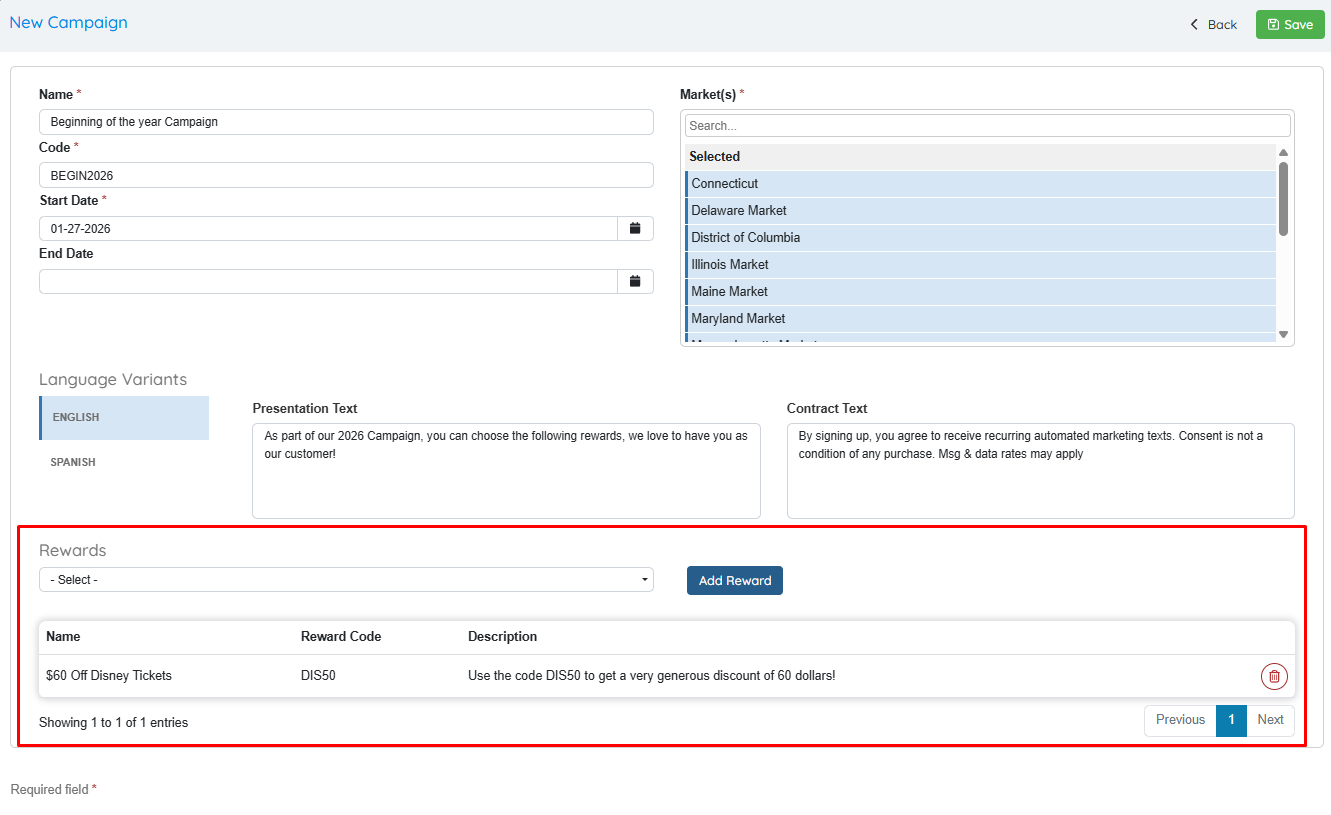
Changes to Campaigns
When creating/updating Campaigns, users can associate existing rewards to the campaign:
Flat & Tiered Plans
With this new type of plans, it’s possible to make offers where customers can pay a full or partial flat fee. This feature is oriented towards plan presentation in OpsAdmin’s enrollment journey as well as documents sent to customers.
This can be configured in 3 different ways:
-
Flat Only: Only flat prices are offered, either a single price for the whole month, or multiple flat tiers.
Case A: Flat Fee $100 a month, no limit.
Case B: Flat Fee $100 for the first 100kwh, $110 for the next 100kwh, $120 for any excess consume.
-
Flat + Over-Usage: A flat price is offered for the initial tiers and a price per kwh for over usage.
Case A: Flat Fee $100 a month for the first 100kwh, any excess 0.15 cents per kwh.
Case B: Flat Fee $100 for the first 100kwh, $110 for the next 100kwh, any excess 0.15 cents per kwh.
-
Tiered: Only prices per kwh are used, but the vary depending on the usage:
Case A: 0.12 cents per kwh for the first 100kwh, any excess 0.15 cents per kwh.
Case B: 0.12 cents per kwh for the first 100kwh, 0.135 cents for the next 100kwh, any excess 0.15 cents per kwh.
Plans Manager
By selecting the type “Tiered”, a new tab is enabled to set up rate tiers:
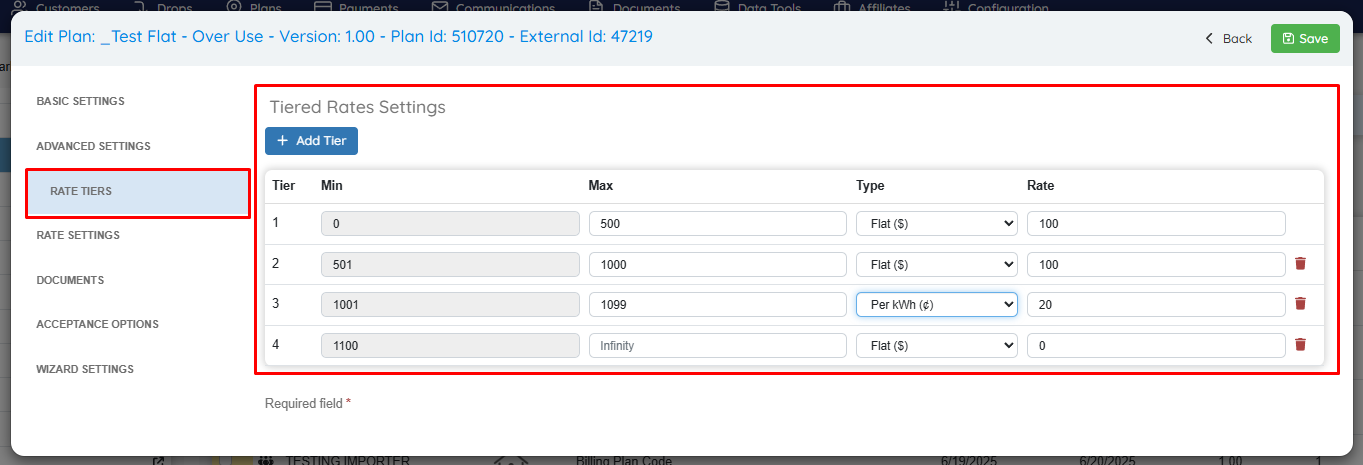
A few considerations:
- At least one tier is required, and up to five can be configured. One tier is only possible if the type is flat
- Traunches must be incremental, meaning that if the first tier is 100 kW, the following must be a higher number.
- Type can be either Flat or Per kWh. Once a tier is configured to be Per kWh, the following tiers can't be flat
- The Promotion tab is hidden as promotions are not available with this plan type.
- When doing traunch calculation, Transfer and Distribution charges per unit apply even for flat tiers.
- Editing tiers is not possible. Only adding/removing them.
- Changing tiers triggers a new version of a plan.
- Functionalities such as the Plan Importer, Global Price Changes, Sales Importer, Renewal Importer,Legacy Importer cannot handle this type of plan with multiple rate values.
- This plan type will not create a SA in the billing system. This plan type works under the assumption that the details of the tiers and/or flat amounts have been accounted for and configured in the billing plan set up, in the billing platform.
Web Enrollment Journey and Quick Enrollments
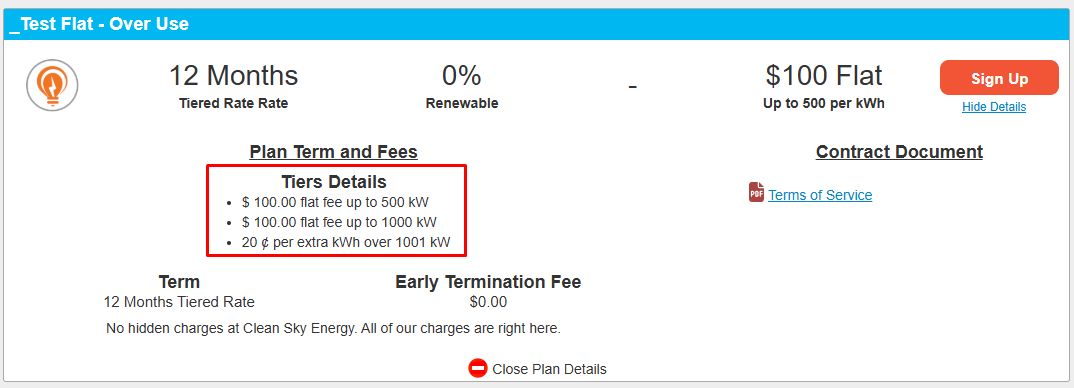
This is how the tiers are shown to customers:
Documents
The dynamic fields [RATE_TIER_RATE_{0}] and [RATE_TIERS_TABLE] can be used to retrieve tier data in documents/autoresponders.{0} should be replaced with the appropriate traunch number.
MyAccount
This is how the data is shown to customers when they access MyAccount portal:
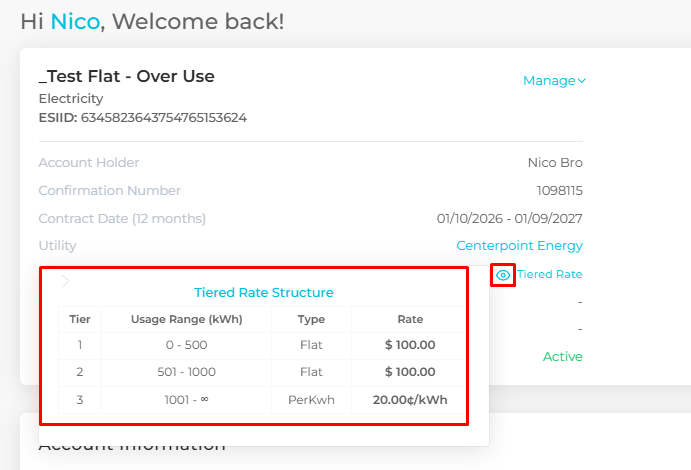
Change how the Renewed status works in OpsAdmin
As part of a series of enhancements, from now on, when processing a renewal, the current active enrollment can:
- Be updated to Expired if the current date is later than the contract end date.
- Remains Accepted if the contract end date has not been reached
Once the new enrollment is updated from Renewal Accepted to Accepted, the prior enrollment is updated to Renewed instead of Archived.
With the process as it is right now, the period between the renewal creation and the actual start date of such renewal, there is no “Accepted” enrollment for a given account, which is the key status to identify if an account is flowing or not.
Updating prior enrollments to "Renewed" simplifies the process of quickly identifying renewed enrollments, reserving the "Archived" status for other types of transactions.
Autoresponders by Customer Type and Plan Type
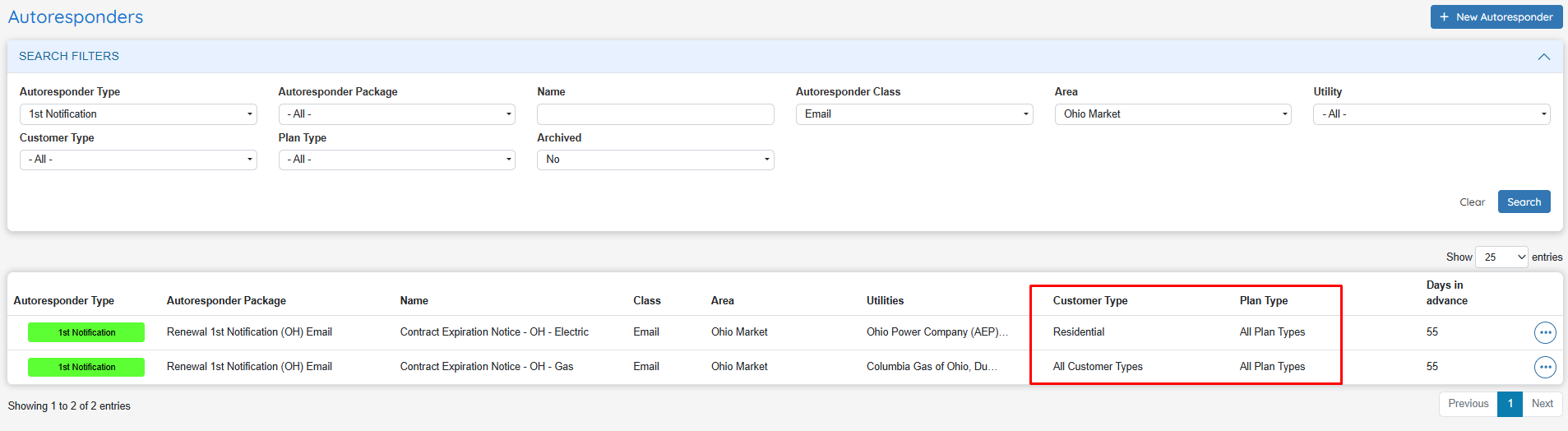
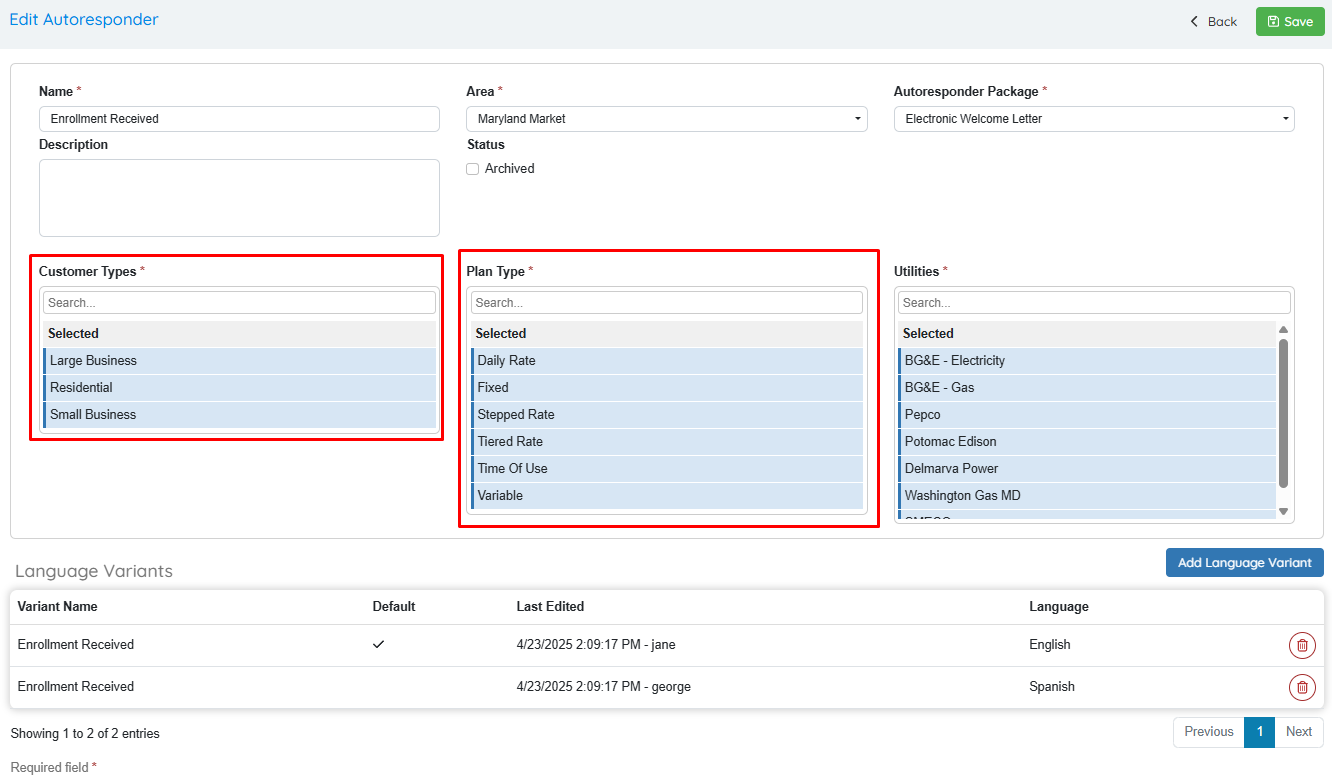
It’s now possible to customize autoresponders by customer type or plan type. This gives customers the option of sending particular communications based on the recipient such as specific welcome letters to Commercial accounts.
By default, all existing autoresponders are associated with every customer type and plan type to avoid altering the current functionality of the system.
To Autoresponders grid now shows columns for the Customer Type and Plan Type:
When creating/updating an autoresponder, it can be assigned to one or more customer types/plan types:
New Modules!
Cases & Credit Workflow Queues
The purpose of this new module is to facilitate a way to submit customer requests interdepartmentally within the organization without having to go outside of the system. Tracking these interactions with customers will be done via a “case”. Systematically, cases are an evolution of the existing Customer Notes functionality. This feature introduces a workflow foundation for handling customer complaints and granting credits.
How OpsAdmin users benefit from this module:
Proactive customer retention
Monitor customer sentiment and detect dissatisfaction early—before it turns into churn.
Priority-driven case management
Instantly identify high-impact cases and focus on customers that need immediate attention.
Controlled credit issuance
Grant customer credits strategically to resolve issues faster and protect long-term revenue.
Clear approval visibility
See at a glance which cases require your approval, reducing bottlenecks and decision delays.
Agent performance insights
Track resolution volume and customer outcomes per agent to identify top performers and coaching opportunities.
Cases
Unlike notes, a case is something that can change over time. For example, if a customer calls complaining, the user may reply to the customer that they’ll call back soon, that’s one interaction in the complaint. The next day the user calls the customer with an answer or proposal, that’s another interaction, etc. In other words, a case has a lifecycle. To access this screen, users should have the following roles: Customer Cases: Edit and Customer Cases: View.
Cases can have different statuses across their lifecycle:
- Open: A case that is currently being worked on, the default status for a new case.
- Waiting for customer: An on hold case that needs a response from a customer.
- Waiting for approval: An on hold case that requires approval of credit or has been escalated to a supervisor, or similar process.
- Resolved: A case that has been closed while communicating with the customer.
- Abandoned: A case that has been closed after the customer stopped replying back.
These statuses do not have any automation incorporated, except for:
- A case can be resolved or abandoned only if it has a resolution.
- If the case has a credit, this must be approved / rejected before being able to mark the case as resolved.
- If a case is abandoned, and a credit is still pending, the credit is automatically rejected.
Customer Support
The “Notes” tab has evolved to “Cases”. Users can add new cases to a customer by clicking on the New Case button or clicking on an existing case to change its status or add new notes.
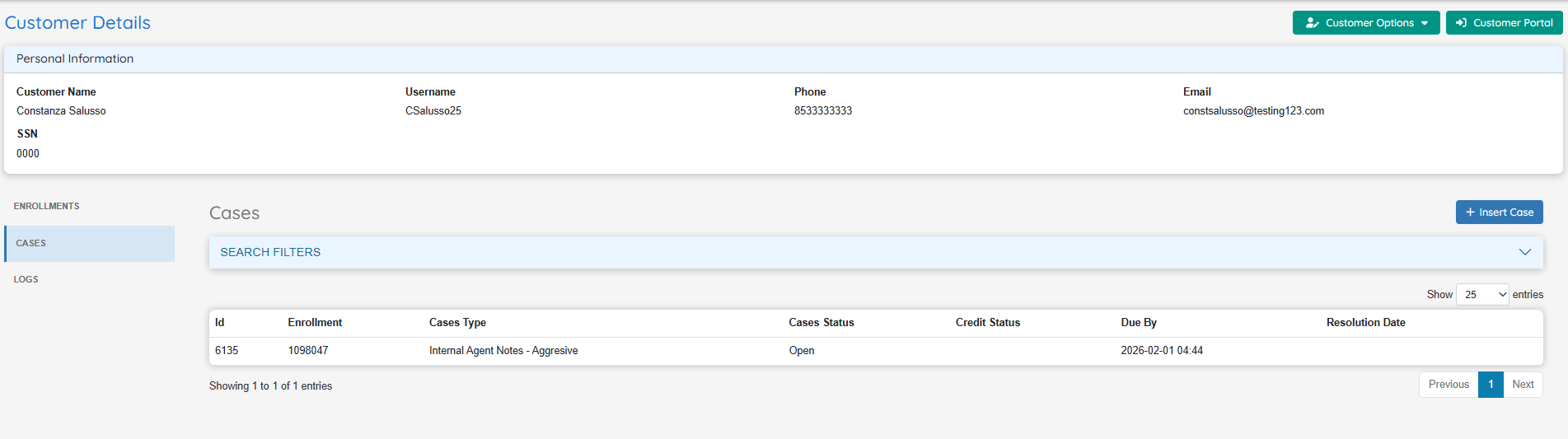
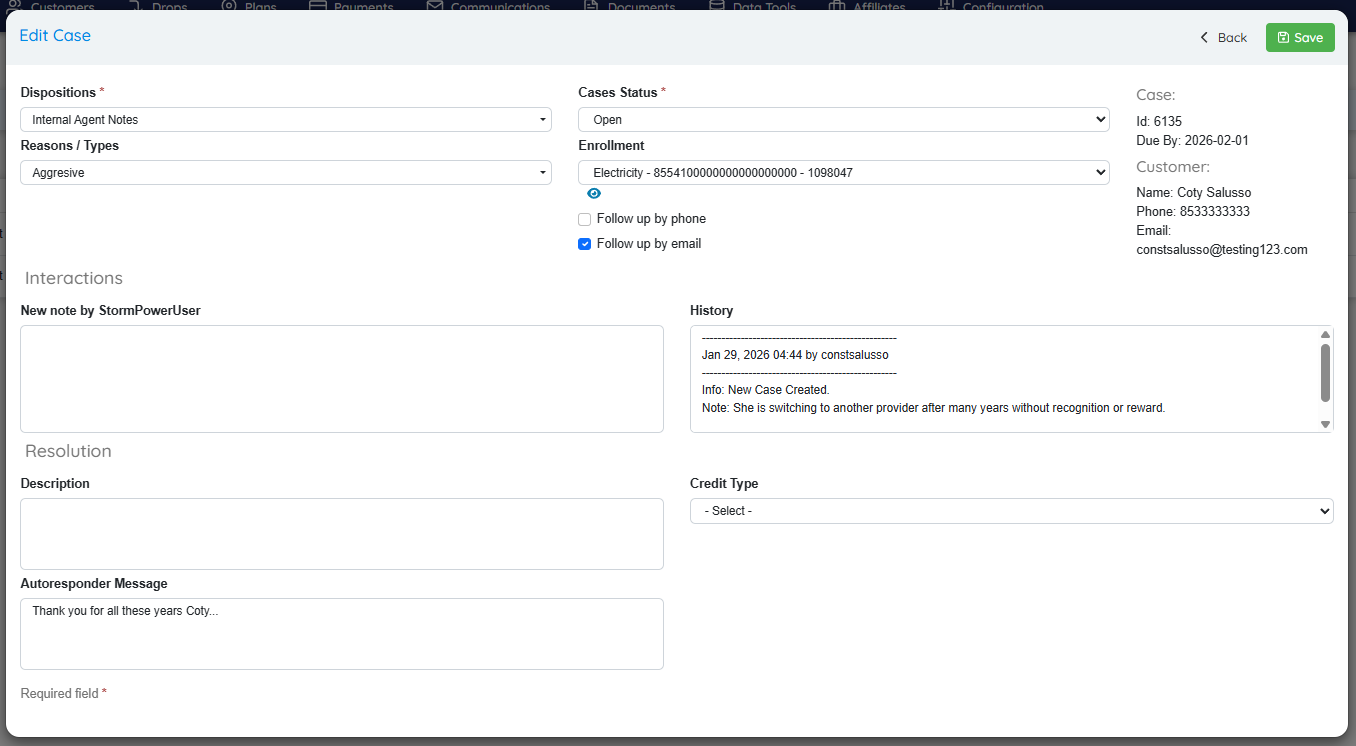
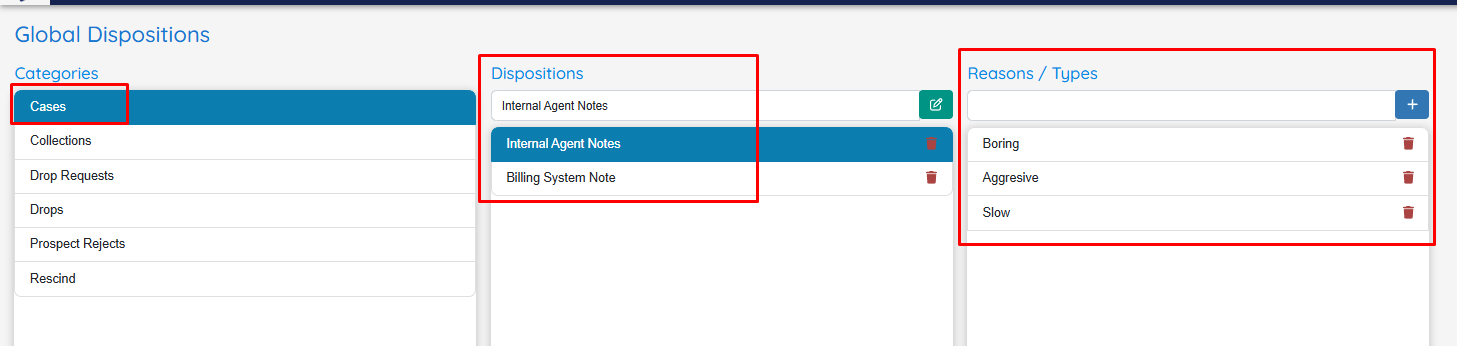
Dispositions and Reasons/Types are completely configurable from* System Setup >> Dispositions*.
The field Due By is automatically calculated when the case is saved, using a new setting under System Setup (Hours before case is overdue).
Autoresponders
There is a new autoresponder trigger for cases and credits called Cases & Credits Resolved. Completing a case or dropping credit triggers the autoresponder. New Dynamic fields have been created to include in the autoresponder. The field “Autoresponder Message” in the main Case UI can be used to communicate the case resolution to customers while the following dynamic fields can be added to the communication as well:
Case Created at: [CUSTOMER_CASES_CREATED_AT]
Case Id: [CUSTOMER_CASES_ID]
Case Resolved at: [CUSTOMER_CASES_RESOLVED_AT]
Case/Credit Message: [CUSTOMER_CASES_MESSAGE]
Credit Amount: [CUSTOMER_CASES_AMOUNT]
Credit Status: [CUSTOMER_CASES_CREDIT_STATUS]
Credit Type: [CUSTOMER_CASES_CREDIT_TYPE]
Disposition Details: [CUSTOMER_CASES_DISPOSITION_TYPES_DETAILS]
Disposition Reasons: [CUSTOMER_CASES_DISPOSITION_TYPES_REASONS]
Dispositions:[CUSTOMER_CASES_DISPOSITION_TYPES_DISPOSITIONS]
Cases Manager
Customers >> Cases Manager offers a general view of all cases.

Credits
The Account Credit Queue provides a structured workflow for requesting, reviewing, and approving or denying account credits. All the credit functionalities can be found under the Payments Menu: Payments >> Credit Queue and Payments >> Settings >> Credit Types.
Users should set up credit types such as Courtesy or re rate. To access these screens, users should have the following permission: Credit Types: Access.

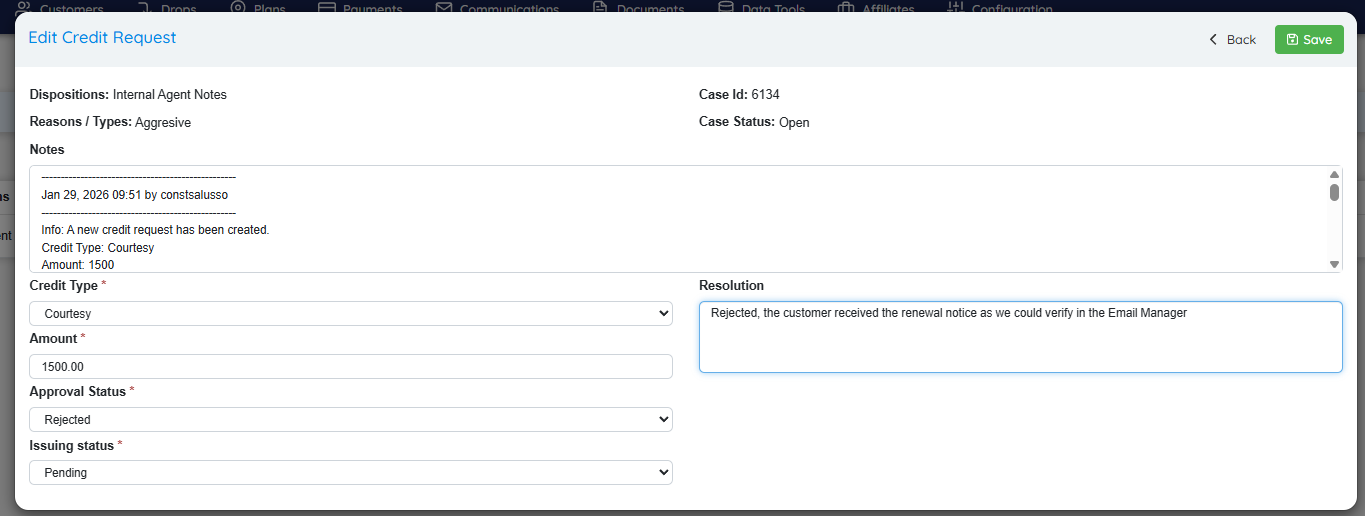
When working with customer cases, this feature makes possible granting credits to customers:
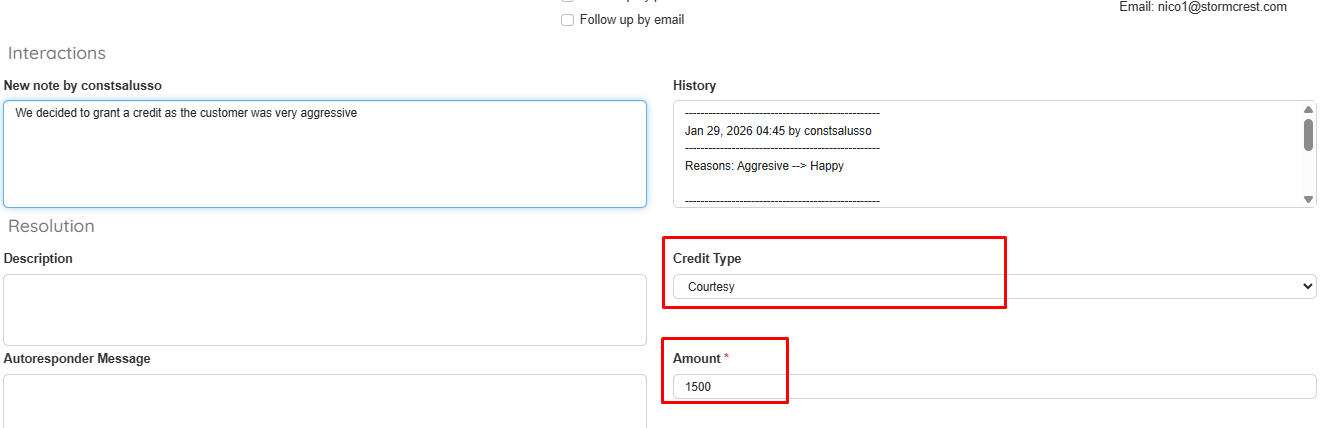
All granted credits can be managed on the Credit Queue UI. To access this screen, the following permissions are required: Credit Queue: Edit and Credit Queue: View.

From this screen, users can approve or reject a credit, or modify the amount: